
Propose an onsite visit
You're ready to go to site and want the company to confirm the date. Proposing a visit in ApexAV puts your dates in front of them and keeps the back-and-forth in one place instead of email. They approve it, and the visit is on the calendar for both sides.
Before you start
- You need to be signed in to the Partner portal and assigned to the project. See First login as a partner.
- Have your date and time window ready. If the work touches specific equipment, know which items from the project's bill of materials are involved.
Steps
Open the Projects tab and click into the project you're scheduling.
Scroll to the ▸ ONSITE module and click Schedule visit.
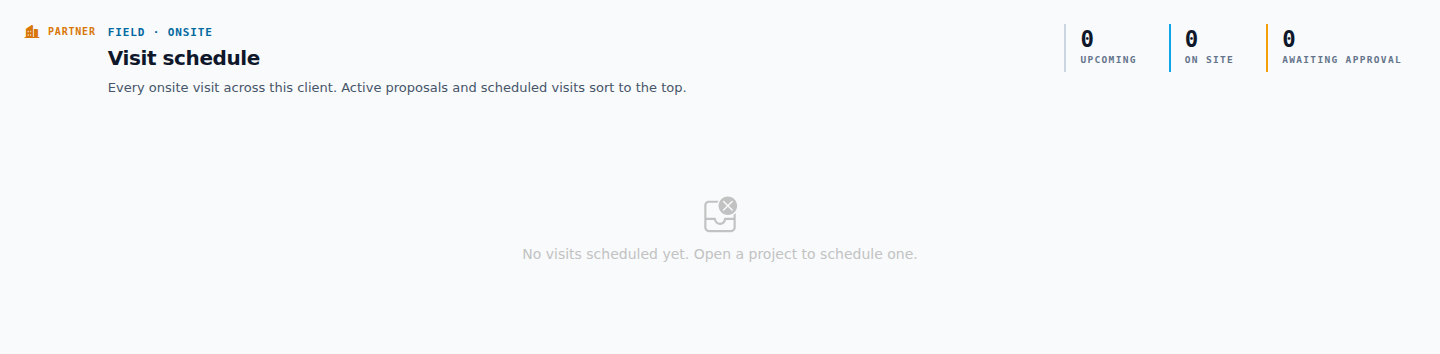
Fill out the visit. Only the date and time are required; the rest help the company prepare:
Field Required What it's for Date Yes The day you plan to be on site Start and end time Yes Your arrival-to-departure window What for Yes The purpose of the visit Equipment items No Items from the project's bill of materials Location detail No Which floor or room Notes No Anything the company should know Click Propose visit. The company sees your proposal at the top of their Field Ops page the next time they refresh.
Result
Your visit shows PROPOSED in your portal while you wait for the company to approve it. Here's the path from here:
Once it's SCHEDULED, you're set. On the day, see Mark a visit on-site, then done.
TIP
Plans changed before the company approves? Open the visit drawer and cancel it. If they've already approved and you need to move it, reschedule with a reason instead.